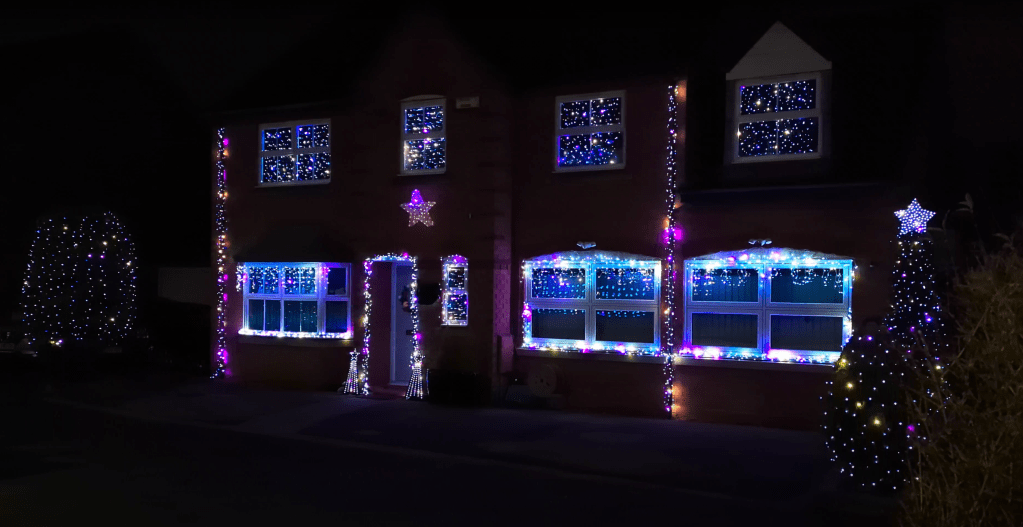
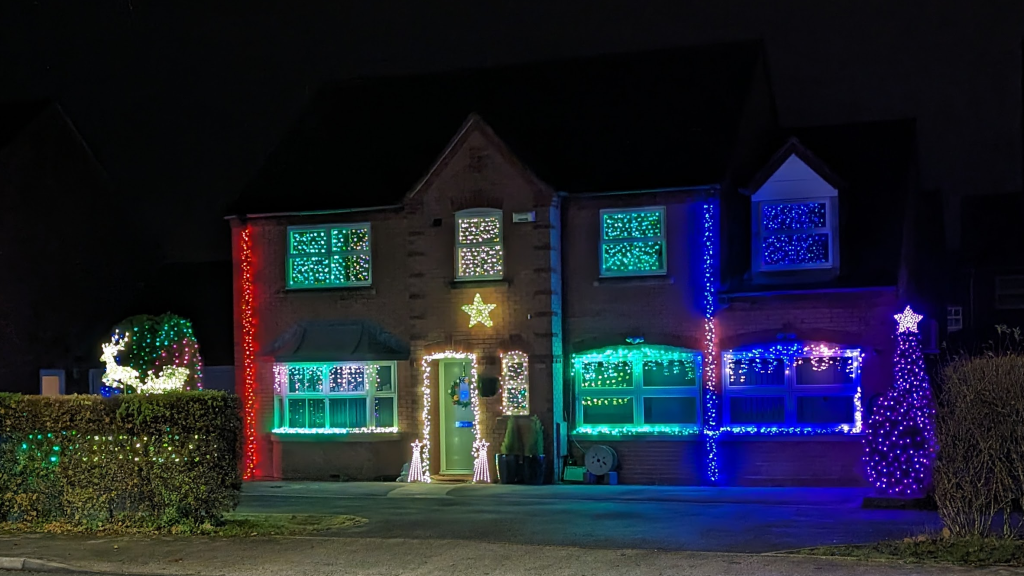
In 2022 we lit the house up for Christmas for the first time. We used 13 sets of lights – 3040 LEDs. This year we went much bigger – 27 sets featuring 6618 LEDs. Many have asked how it works, so this is a behind-the-scenes look at what the setup entails.
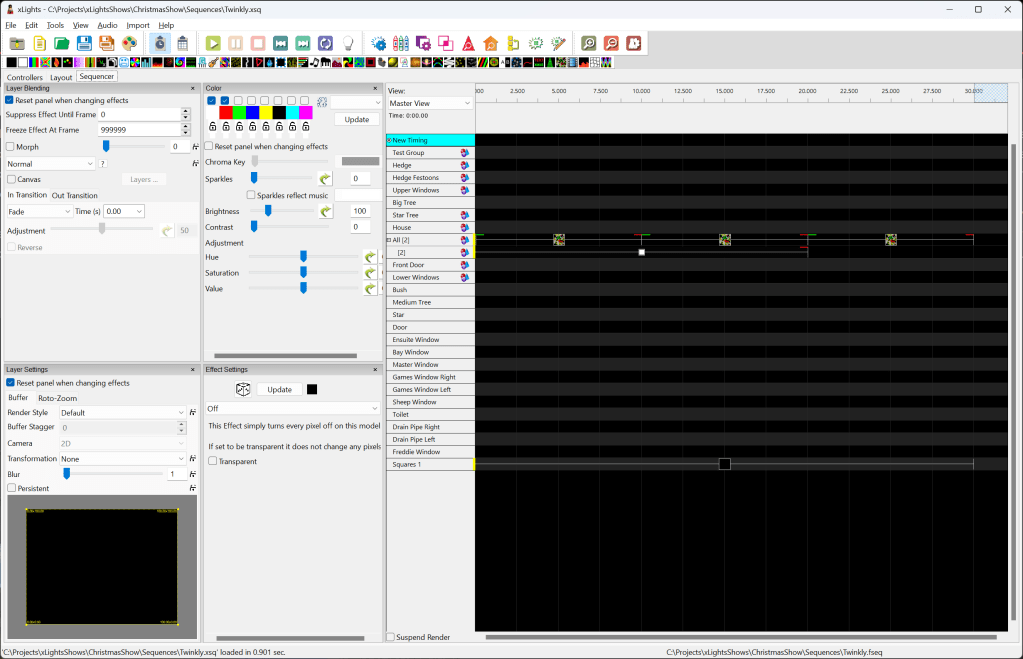
As a quick peek, we used WiFi enabled Twinkly lights, and controlled them with a Raspberry Pi running FPP (Falcon Pi Player). Each LED knows where it is on the house and relative to all other LEDs, which allows spectacular effects that “run across” the house. The show was authored over the course of a few weeks in xLights, uploaded to FPP and triggered on a schedule.
Twinkly
The most important part of a Christmas Light show is the lights. I chose Twinkly – we’ve used them on our indoor tree for a few years, and they’re suitable for outdoors. They look like regular fairy lights, but with wifi and other smarts. Each LED is individually addressable – this means they don’t all have to show the same colour all the time like regular fairy lights. And this allows the Twinkly app, which uses a clever video capture method to scan the lights once you’ve wrapped them around your tree, and figure out where each one is relative to the others.
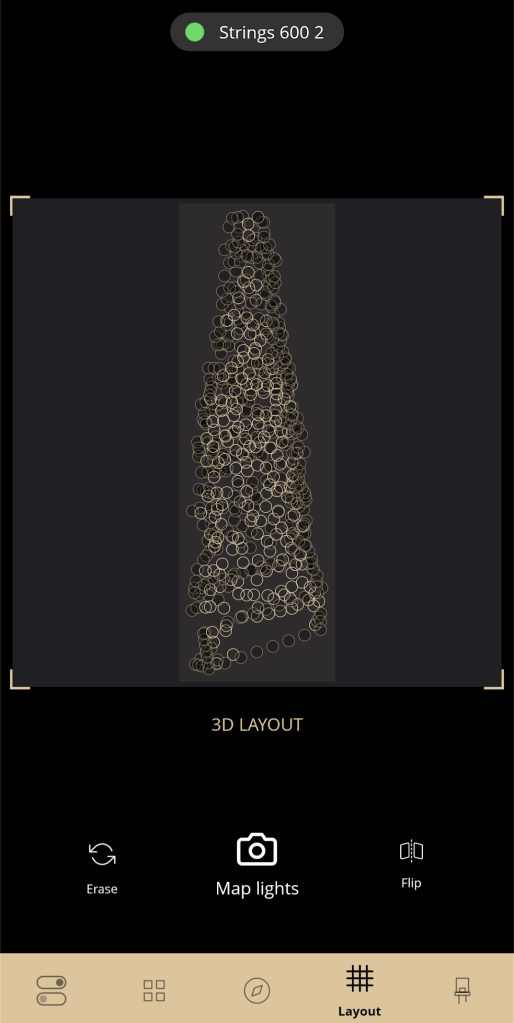
This is where we stopped in 2022 – 13 sets of lights on the house, all mapped using the Twinkly app, and a playlist of effects created in the Twinkly app for each one. Some sets were “grouped” so that they played an effect together, which creates the appearance of a single set, for example the Big Tree had a Strings 600 + Strings 250 on it that looked like 850).
In 2023 we’ve used a combination of Twinkly Strings (in all lengths – 100/250/400/600 LEDs), Clusters, Festoons, Icicles, and Squares (note these were a late edition so aren’t shown in all of this post’s images). The reindeer props and one of the stars were manufactured with Twinkly Strings built-in. Most of this was acquired over a few years through deals – it’s surprising how much you can save if you buy in the Summer or wait until the last minute and hit Black Friday!
2022 looked great, but there were a couple of niggling issues – light sets would get out-of-sync with each other creating some jarring transitions as they moved on to the next effect in the playlist over the course of a few seconds. I believe this was due to imprecision in their controllers’ timers, and the time it would take for each device to turn on when they were automatically powered up at 15:30. I also felt there was a lot of potential being left on the floor – the effects in the Twinkly app are limited, you can create your own in there but the editor isn’t particularly flexible, and you couldn’t change the grouping for a particular effect, eg you can’t have everything do the same effect for one sequence, and then split out into individual effects for other sequences.
xLights
The answer to those niggles was to level-up the control software. Rather than using Twinkly’s built-in effects editor I used xLights to author a show, which can then be played back on the devices in real-time – a bit like streaming a video, but instead of going to a TV, it’s going to fairy lights.
xLights is free, open-source software created just for this purpose, and is the dominant way to create pixel light shows. There are lots of really cool shows on YouTube that have hours of effects synced to music.
First you tell it about all the devices you have in your arsenal – filling in a few details about each one – a name, its IP address, model, and how many LEDs it has. To help with this, every device has been meticulously numbered, labelled, added to a spreadsheet and had its name set in both the network manager and in the Twinkly controller settings.

Then you can layout the lights as they would appear in the real-world. To help with this, I spent a couple of evenings with a tape measure and OnShape to create a digital model of the house, which I can then use inside xLights as a guide for getting light positions to match closely to the real setup. Once you’ve done this as accurately as possible, xLights makes it extremely easy to coordinate effects that run spatially across multiple devices.
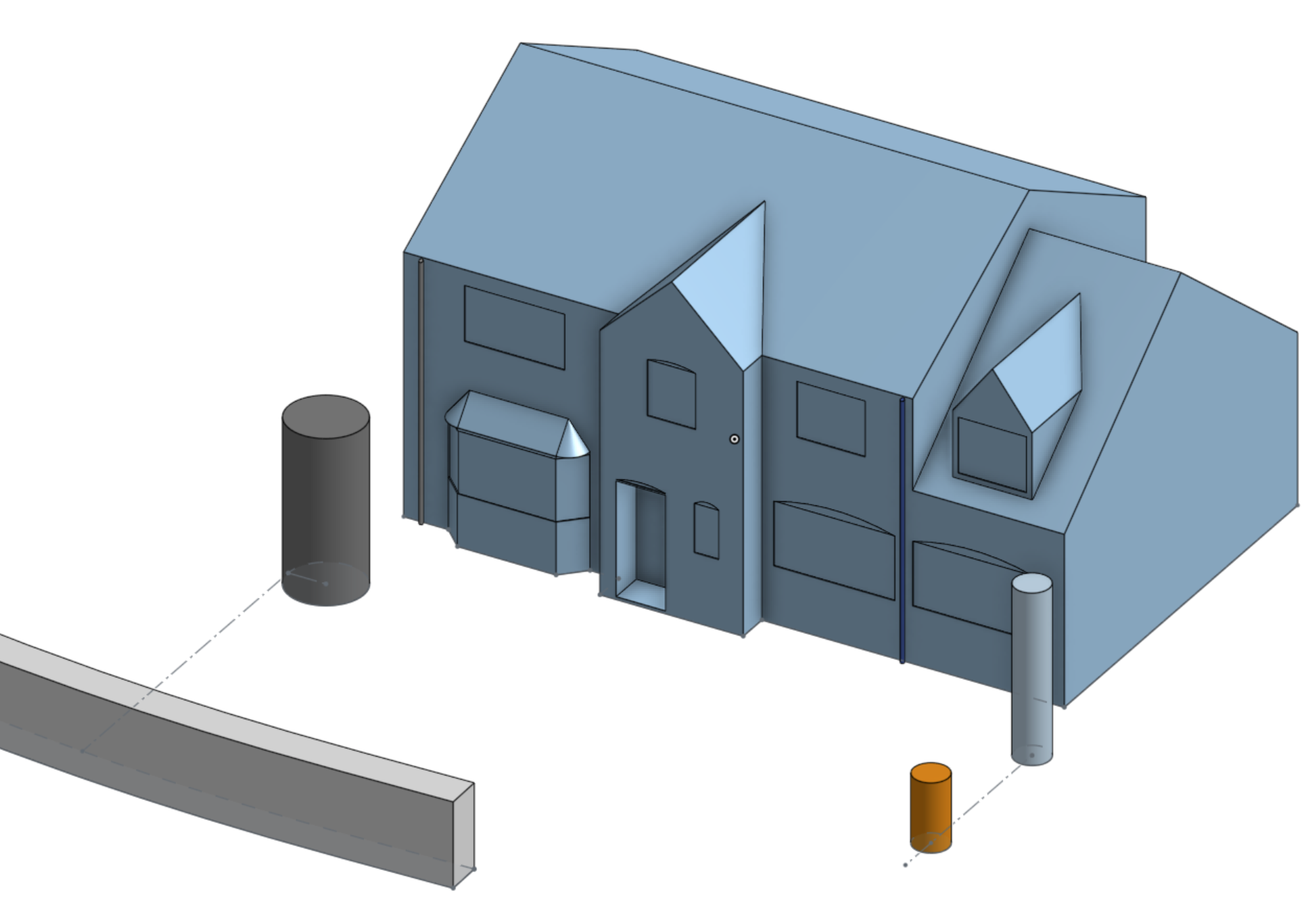

The type of layout for each device depended on how it was going to be used:
- Some were imported from the mappings I’d created in the Twinkly app. This was great for “organic” objects like the trees, bush and reindeer, and the chaotic Twinkly Clusters sets, but I only used it where necessary – finer details in effects can get lost on these as their digital representation is quite sparse.
- Some were created in xLights directly as Matrix models – just tell it the width and height of the grid. This made it easy to do the upstairs windows, hedge festoons, drainpipes, which were all very structured shapes and were very grid-like.
- The two mini-trees by the front door are a combination of xLights’ built-in Flat Tree and Star shapes.
Physical Setup
Most of the lights attached to the house are using little sticky hooks – these worked surprisingly well and come off when you want them to, but I also found that they don’t stick to brick especially well and a few of them have fallen off since. In a couple of places they’ve been replaced with Brick Clips – these were originally bought as a no-tools-required solution for hanging props on the walls but I found they came off a bit too easily as they’re designed for US brickwork, however they worked really well for just holding up bits of light string.
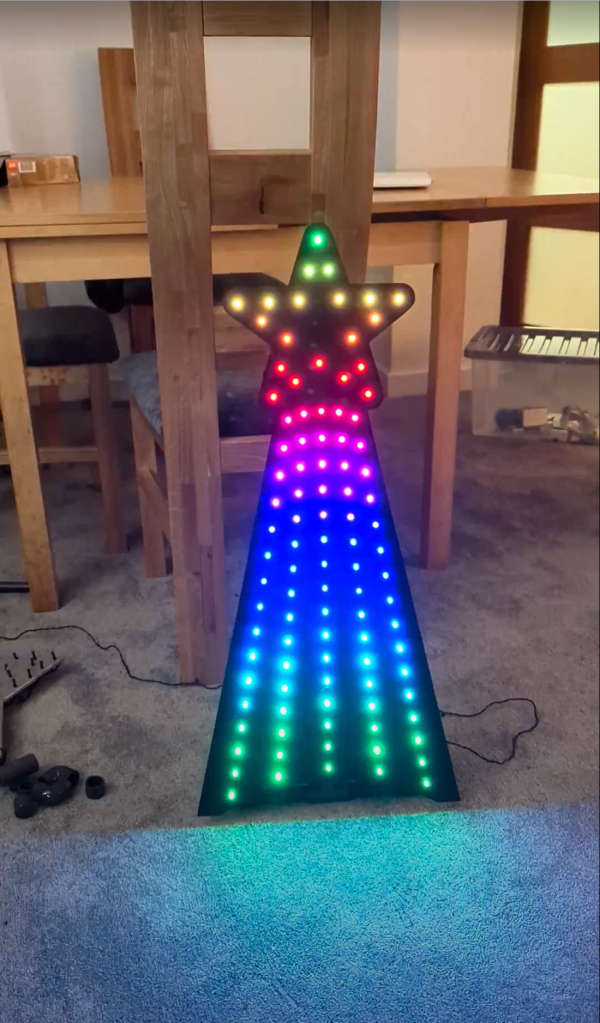
The two mini-trees were from BuildALightShow – they come as a flat piece of plastic with pre-drilled holed that you poke lights (though every hole needed enlarging, which took ages – I’m not sure why BALS don’t make them the right size to begin with). I built a stand for them out of 1/2″ PVC pipe and a 3D printed clip, then weighed them down once in position.

The Twinkly controllers and extension leads are protected inside Driboxes that can (and have!) take a lot of punishment from the weather. Over around three weeks of evenings we got everything in-place and tested. This overlapped with creating the digital layout as often I wasn’t exactly sure where stuff was going to go, and some of it had to be mapped after placement anyway.
Once we started testing, it became obvious that the upstairs windows were not as clear as we hoped – the white blinds behind them reflected and diffused the light a lot. To fix this, I got a long roll of black fabric and some telescopic curtain rails. Our sewing machine-savvy neighbour kindly did a quick cut & hem to produce 4 black blinds to fit in the windows. As a bonus, it also improved the black-out in the bedrooms, which we found can get quite flashy!
Authoring
Concurrently, I was starting to create the show. Once I’d created some test sequences, I had reasonable confidence that stuff I made in xLights would look approximately the same on the real lights. I aimed to create around 10 30 second sequences for a 5-minute show. For some I had a pretty clear vision of what I wanted to achieve, others were the product of random experimentation and seeing what looked cool. Across the show I tried to cover a few theme bases, with some sequences that looked traditional (eg static red, orange hues), some that had a clear theme (eg candy canes). Some were really simple and would come together in 15 minutes, others were more technically advanced and took a few evenings to create, with multiple effects interacting and blending with each other to tell a bit of a story. After the Big Switch On I also started taking requests from donors to the charity we were supporting (LWS Night Shelter), which gave us the themes of Tropical and Mario. In the end, the show ran for just over 8 minutes, with various changes and additions through the month.
A few of the things I learned along the way were:
- Text and images are very difficult to get to look right – the match-up between layout in xLights and the real-world needs to be incredibly accurate. I suffered here with the window matrices being a bit fuzzy due to the Twinkly Strings not allowing lights to be positioned precisely on the window. Props that have mappings (such as the trees) are too sparse for details to show up – once imported into xLights the LEDs are positioned on a virtual grid, and this tends to put large amounts of space between them, which text and image detail falls into. I did use text and images on the windows, but it could’ve been better – I had to use very large font sizes, restricting to essentially a single letter/number per window. It did however show up very nicely on the Hedge (which was very precisely laid out on a net as a 32×5 grid), and the late addition of Twinkly Squares.
- Colour shades are difficult to distinguish – although Twinkly lights advertise as supporting 16 million colours and technically do, the reality is that you can’t tell the difference between subtle (or unsubtle) shades – sky blue, light blue, dark blue all just look like the same blue. I had to restrict myself to highly separate colour selections – most effects are using pure versions of red, blue, green, magenta, white; even orange and yellow can be difficult to tell apart when used together. Gradients still work – blending from blue to red will go through a nice smooth transition, but you couldn’t eg use an image that had light blue and dark blue shading. Note the Twinkly Squares didn’t have this problem quite as much; colour definition there was a lot better.

Playback
After authoring, the sequences are handed over to FPP (Falcon Pi Player), which runs on a Raspberry Pi in the house and streams colours to the lights in real-time, updating all of them 40 times per second. FPP handles the playlist of sequences and starts/stops the show at the right time. On top of this, I use Home Assistant to power up/down the devices when the show isn’t running. While not strictly necessary, I found that Twinkly devices like to revert to their built-in effects occasionally so this just ensures they don’t start doing stuff in the middle of the night.
Five minutes before show time, Home Assistant turns all the power sockets on. This allows the Twinklys to get back on the wifi and settle down. During this time FPP is playing a looping “warm-up” sequence that’s simply 30s of black to establish the streams and ensure the Twinklys don’t run their built-in effects. It also covers a weird bug where the very beginning of the stream causes the lights to flicker random colours for a few moments – I think this is a problem with the devices rather than FPP, but haven’t properly investigated – displaying black in advance of the show means you don’t see the glitching as the real playlist kicks off.
#whoops – There were a couple of things that didn’t go to plan – notably at the Big Switch On. Just as the show started, FPP crashed and I had to turn everything off and on again, making sure to bring stuff back up in the right order while stood on the drive with an audience of family & friends – no pressure! I later filled a bug, and the FPP authors had got it fixed by the next day.
2024
For 2024, I need to make a few general improvements. Especially to the WiFi arrangement – I frequently found that the lights on the hedge struggle to connect – I believe this is because the cars on the drive block the signal from the house. I later added an additional access point that isn’t blocked by the cars, but this was affected by the power down, and would take too long come back online at power up.
I’ve also got a few new ideas that have already begun to form – it’s never too early to start thinking about it; after all it’s only 10 months until we’ll have to start setting up again!
I’ll leave you with a full video of the 2023 show (as it was on 1st December).
Ingredients
- Twinkly devices (Twinkly Direct, Lights4Fun)
- Raspberry Pi (Link)
- xLights (Link)
- FPP (Link)
- Sticky Hooks (Link)
- Dribox (Link)
- Generic 4-gang extension leads 1/2/5/10m
- Outdoor sockets (Link)
- Outdoor cable ramps (Link)
- Brick clips (Link)
- Mini-trees (Link)
- PVC piping (Link)
- PVC piping clip (Link)
- Bambu Labs PLA Basic Black (Link)
- Black cotton fabric (Link)
- Telescopic curtain rails (Link)
Ed

 Ed Made Something
Leave a reply to Christmas Lights 2024 – Ed Made Something Cancel reply